Claude Desktop practical guide
Let Claude Desktop do the clicking: a practical computer-use guide
Enable computer use, choose the right access, and turn a small desktop task into a checked file or completed workflow.
In this guide
The useful starting point
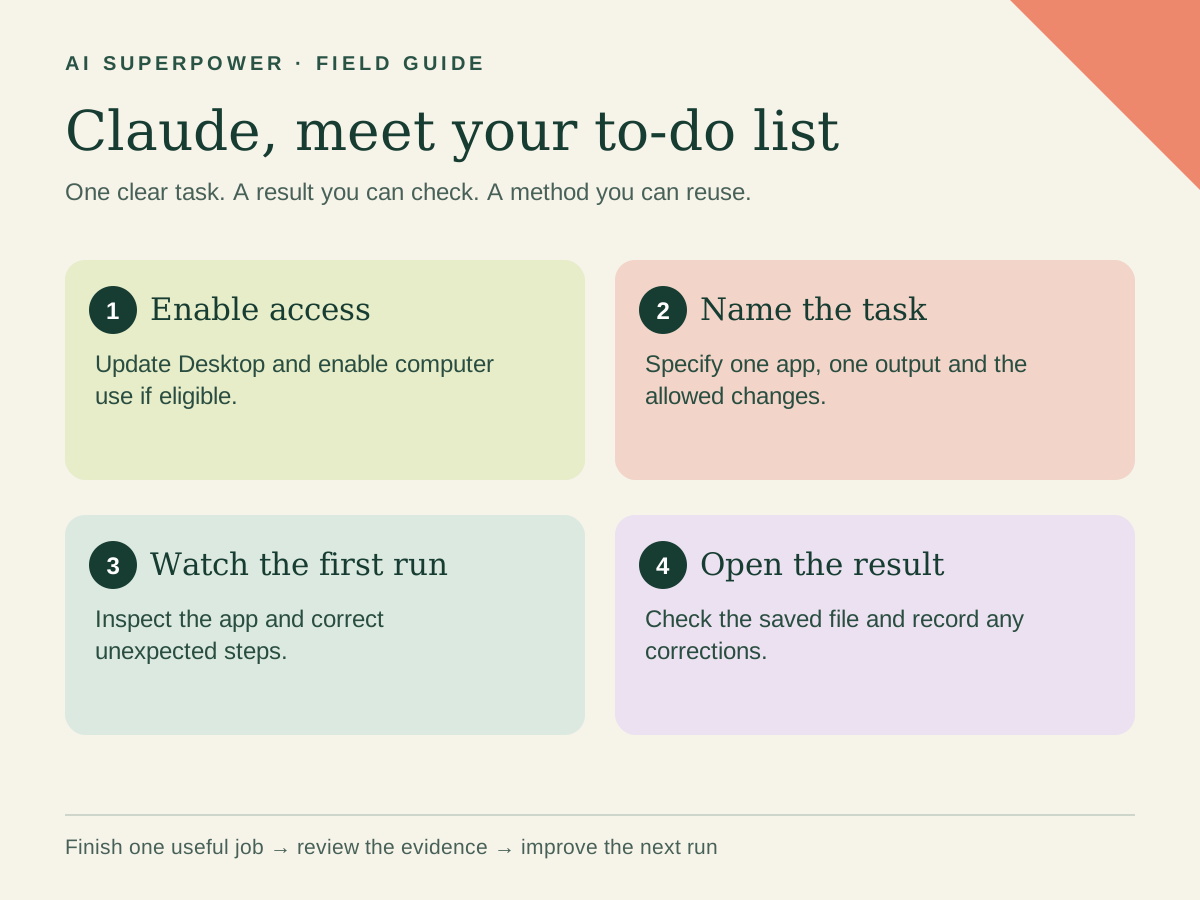
In eligible Claude Desktop accounts, enable computer use in settings and ask for a bounded task. Approve the apps it needs, watch the first run, and inspect the actual output.
That repetitive sequence of opening a page, copying details and turning them into a document is a good place to test an agent. Claude Desktop can help carry out work as well as discuss it. The useful question is what you want finished, which information it may use, and how you will know the result is right.
This guide separates direct desktop control from browser work and connected apps. The exercises are original examples to try with your own approved material. We have not independently benchmarked these workflows or measured a universal time-saving result.
Check availability, then enable computer use
According to Anthropic's computer-use guide, the beta is available in Claude Desktop on macOS and Windows for Pro, Max and Ultra. Team and Enterprise do not currently have this direct computer-use capability. Cowork access alone does not mean every control feature is enabled.
- Update Claude Desktop from the official download page.
- Open Settings → Capabilities; if the section is absent, look under Settings → System → This computer.
- Turn on Enable computer use.
- Start a Cowork or Claude Code session. Some accounts have a unified Chat/Cowork interface.
- Describe a small task and approve the specific applications requested.
Keep your computer awake and Claude Desktop open. Direct screen interaction can make mistakes and is often slower than a connector. Use a connector when it covers the job; reserve desktop control for work that needs the screen.
Choose the route that fits the task
| Route | Good first task | What to inspect |
|---|---|---|
| Connected app | Read one approved document or project | The account, accessible records and allowed actions |
| Built-in browser | Review public pages and prepare a comparison | The URLs and facts used |
| Desktop computer use | Inspect a practice app without a connector | The permitted app and visible changes |
The built-in browser opens in Claude Desktop's side panel and is separate from your everyday browser. Claude in Chrome is a different option that works through the extension in your Chrome browser. The built-in browser also depends on Desktop staying open and online. Choose the environment deliberately when existing tabs or sign-ins matter.
Practice task: turn public pages into an event brief
Pick three public event pages from organizers. Your goal is an editable comparison for a team learning day, containing date, timezone, venue, registration link and unresolved details. This task is easy to inspect and does not require registering anyone.
Use these three official event pages: [URLs].
Create an editable event comparison and a one-page recommendation.
Record the date, timezone, location, registration link and date checked.
Mark absent details as unknown. Exclude events before [date].
Use the browser if needed. Do not register, pay, send or publish.
Show which sources support the final recommendation.
Review the first extracted event before asking for the rest. Confirm that the year is correct and that “virtual” does not mean a local venue. Ask Claude to show any conflicting dates. Your acceptance criteria should include a real output file, working links and a clear explanation of what remains unknown.
Practice task: inspect a desktop workflow
Use a practice application or a copy of a project you own. Choose a short journey such as opening a sample file, finding a setting and documenting the steps. Start with observation; a complete set of reproduction steps is useful even before you authorize a fix.
In [approved practice app], inspect how a new user opens [sample file]
and reaches [specific setting]. Record the exact steps and any confusion.
Create a short illustrated instruction sheet if screenshots are supported.
Do not change preferences, delete files or touch other applications.
If the screen differs from the expected state, stop and describe it.
Watch the first run. Verify that screenshots contain only the practice content and that the instructions match the application version. A generated instruction sheet should distinguish actions Claude performed from suggestions it has not tried.
Move from observation to a small change
After the inspection succeeds, choose one reversible action in a duplicate file. For example, ask Claude to format a copied agenda with heading styles and a clear action table, saving it under a new name. Supply the desired filename and folder. Ask for the output location and a short list of changes.
Use the copy named Practice Agenda. Apply consistent heading styles
and arrange the supplied actions into owner, task and due-date columns.
Keep every original fact. Save as Practice Agenda - Formatted.
Do not overwrite the source. Open the saved result and check it.
Verify that the output opens, all actions survived, and no deadline appeared without a source. Compare total time spent directing and correcting the work with the time you normally spend. Keep a successful example for future tasks.
Make the next run easier to review
Anthropic's Cowork guidance explains that access determines what an agent can read and change. Use a practice folder and approved apps, close unrelated sensitive material, and inspect unexpected requests. Direct computer use interacts with real applications; a written stop rule is useful but is not an isolation boundary.
If a task stalls, narrow it to one page or one file and state the expected screen. If a connector is available, consider that route. Keep the accepted input, prompt, output and corrections together. Your next improvement should remove a repeated source of confusion, not simply ask Claude to “be better.” Continue with the six practical agent jobs or bring a task to a working session.
Explore the Agent Field Guide → · Get help with your workflow →
Sources and further reading
Sources checked October 31, 2026. Tool features and plan availability can change; review the linked publisher documentation before connecting an account.
Put one idea to work
Compare a tool on work you understand, measure review effort, and keep the result only when it improves the task.
Plan a useful tool trial →Explore more from AI SuperpowerKeep practicing
 Technology field notes
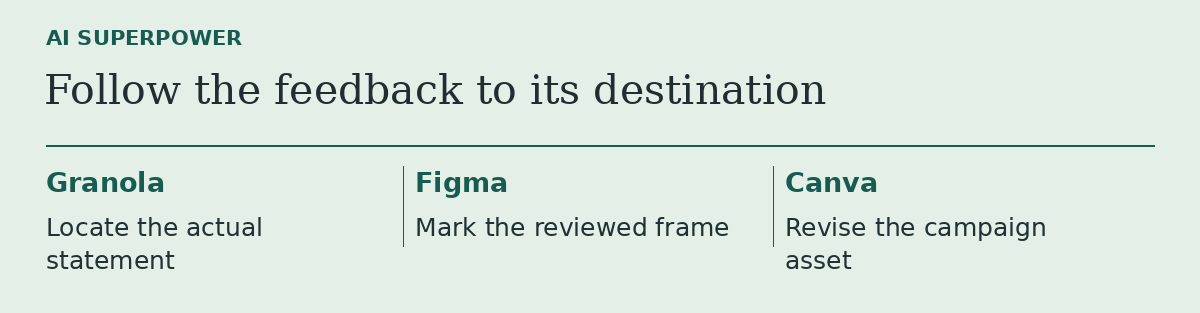
Granola, Figma or Canva? Follow one piece of feedback to the right tool
Three product updates make more sense when you start with the file you need to change.
November 18, 2026 · 2 min read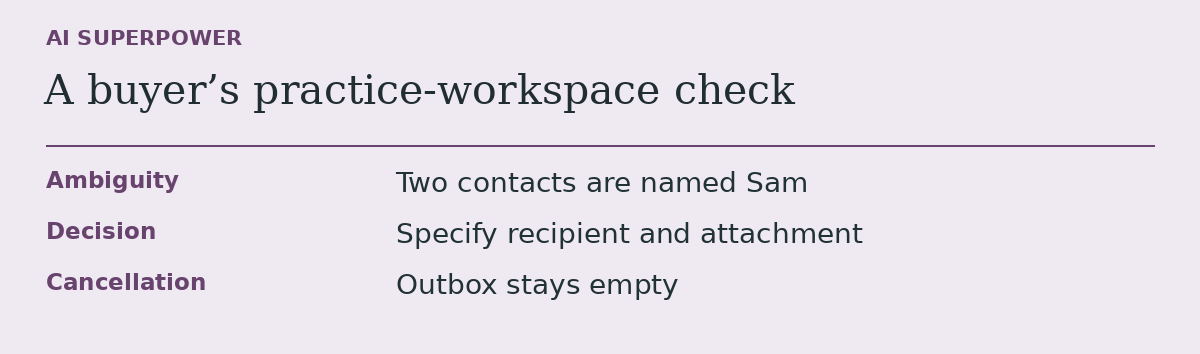 Technology field notes
Before you subscribe to an AI agent, give it a task it should leave unfinished
An acceptance test for buyers who need to know what an agent does when information runs out.
November 18, 2026 · 2 min read