AI agent tutorial
How to Use Meta Muse: A Step-by-Step Guide with Real Screenshots
Set up Meta Muse, research five vendors, create a launch brief, connect apps and schedule useful follow-ups—with real product screenshots and prompts to copy.

In this guide
- The useful starting point
- What Muse can do for you
- Step 1: Open the official Muse and sign in
- Step 2: Set useful preferences and review access
- Step 3: Give Muse a five-vendor research task
- Step 4: Watch progress and correct the direction
- Step 5: Check the comparison and ask for a recommendation
- Step 6: Turn the decision into a saved launch brief
- Step 7: Connect one app when your next task needs it
- Step 8: Review the actual action before approving it
- Step 9: Add a recurring review you can inspect
- Step 10: Keep useful memory and an exit path
- Optional: Use Muse on your Mac or in Chrome
- When the workflow gets stuck
- Questions you might be asking
- Sources and further reading
The useful starting point
Open the official Muse, choose one task with a clear output, give it the context and boundaries, and inspect the finished result. This guide walks you from a public-source vendor comparison to a saved launch brief, then through optional connectors, recurring tasks and memory.
Muse is Meta's personal AI agent. You give it an outcome, it works through the steps using its browser and the services you connect, and you review the result. A useful first assignment is a small research project that ends in a file you can actually use.
Explore the Muse by Meta tool profile for its official links and directory overview, then follow the practical workflow below.
In this tutorial, you'll create a five-vendor comparison and turn your choice into a launch checklist. Then you can add a connected app, a recurring review, and selected memories. These are original practice prompts based on Meta's documentation, checked November 20, 2026. The images are Meta's published product screenshots.
What you'll finish: a comparison with source links, a saved launch brief, and a clear next action. Start with public websites; you can complete the main exercise without connecting email, social accounts or payments.
What Muse can do for you
Meta documents web browsing, multi-step tasks, files, reminders and connected services. Muse can continue working in the background and keep context across conversations. Its cloud computer is separate from local Mac access, which has additional settings. See Meta's Muse overview and productivity examples.
| Your job | Useful first deliverable | What you review |
|---|---|---|
| Choose a tool | Five-vendor comparison with dated sources | Features, limits and total cost |
| Prepare a launch | Checklist, page outline and draft copy | Offer accuracy and readiness |
| Catch up on work | Summary from a specific connected folder or inbox | Coverage and missing context |
| Maintain a routine | Scheduled review with a useful output | Schedule, quality and continuing value |
Step 1: Open the official Muse and sign in
Start at muse.ai or use Meta's download page for mobile and Mac. Sign in with your Meta account, or follow the account creation flow using an email address, phone number, or eligible existing account. Availability and individual features vary by location and account.
Muse opens on the Chat tab. To organize this exercise separately, Meta's instructions say to open the top-left menu and use the pencil-and-note icon to create a side chat. Side chats organize topics; Muse remains aware across the main conversation and side chats. Official getting-started steps.
Call your practice project “Workshop launch research.” Give it a purpose that you can finish today, such as choosing a registration tool for a small online workshop.
Step 2: Set useful preferences and review access
Tell Muse how you want it to work. A brief with a concrete output saves you from correcting a long answer that solves the wrong problem. Replace the bracketed details before pasting this prompt:
Help me prepare one small online workshop for [audience].
My time zone is [time zone]. The workshop topic is [topic].
Use plain language. Separate verified facts from suggestions.
For this first task, use public websites only.
Create drafts and files for my review. Ask before sending,
publishing, booking, subscribing or spending money.
When something is missing, label it and tell me how to check it.
Open Settings > Permissions to see the actual controls for connectors and web access. Meta documents options including Ask for some actions and Always ask. Choose the level of oversight you want; a sentence in chat complements these controls. Permission settings and activity controls.
You can also review Settings > Data controls. Meta says its model-improvement setting starts on; to opt out, switch off Help improve our AI models and confirm Turn off. Muse data controls.
Step 3: Give Muse a five-vendor research task
Choose one decision, with criteria that matter to you. For this example, you're comparing registration tools for an online workshop. The $100 ceiling below is a fictional planning limit, not a product price or recommendation.
Find five tools that could handle registration for one paid
online workshop with up to 20 attendees. Planning limit:
$100/month for software, before payment-processing fees.

Use each vendor's official product, pricing and help pages.
Return a table with: vendor, official URL, paid-registration
support, reminders, payment options, attendee limits,
monthly or per-event fees, transaction fees, export options,
source links, and the date you checked.

Keep annual-billing prices separate from monthly prices.
If a feature or fee is unclear, mark it "Not verified."
Explain the two strongest fits for these requirements.
Do not create accounts, contact vendors or buy anything.
Finish with the questions I must answer before choosing.
Good constraints help you judge the result. “Best tool” is difficult to evaluate; “supports 20 paid registrations and lets me export the attendee list” is a requirement you can inspect. Change the audience, capacity and budget to fit your project.
Step 4: Watch progress and correct the direction
Tap the assistant avatar to inspect its Activity log. During browser work, Open browser shows the shared browser; Take control of the browser pauses its browsing, and Stop the task ends that browser task. These controls let you intervene when a page is wrong or access is blocked. Official browser controls.
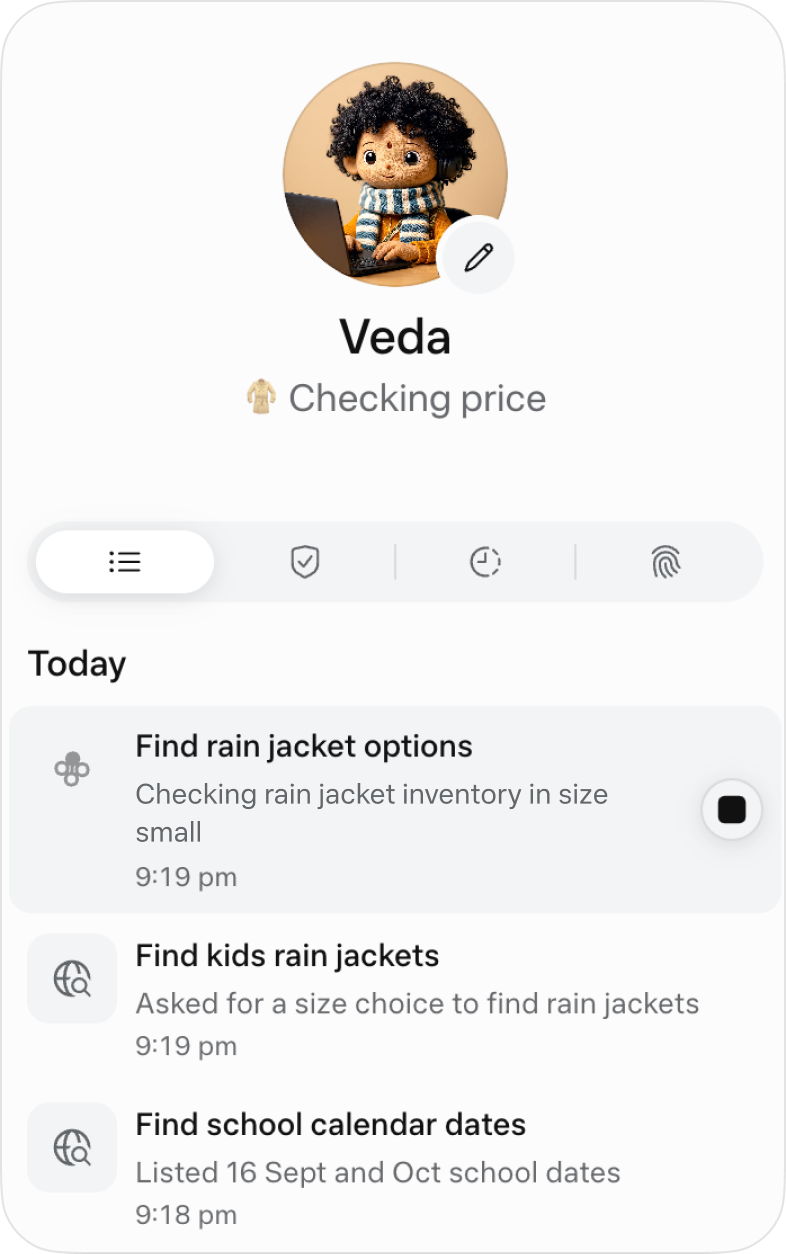
Suppose the research starts drifting into enterprise event platforms. Correct the scope in the same chat:
Keep this focused on a solo host running one 20-person
workshop. Exclude products requiring a sales contract.
Keep any useful research already completed. Tell me which
requirements each remaining option meets and what is unknown.
When a website blocks access, ask Muse to preserve the other findings and name the missing source. Check that page yourself or supply a permitted excerpt. Repeating the same failed task indefinitely won't improve the comparison.
Step 5: Check the comparison and ask for a recommendation
Open the official links for the two finalists. Check the pricing interval, the attendee limit, any payment fees, and the exact plan that includes reminders. A feature can exist in a product but be absent from its entry plan.
Then ask for a recommendation tied to your evidence:
Use the comparison we just reviewed. Recommend one option
for my stated workshop and explain the tradeoff against the
runner-up. Cite the source for each decisive fact.
Include an "Unresolved before purchase" section.
If neither fits, say so and suggest which requirement to revisit.
Your finished comparison should let you trace every important decision back to a source. Keep unknowns visible. An accurate “not verified” is more useful than a made-up answer that sends you into the wrong subscription.
Step 6: Turn the decision into a saved launch brief
Muse supports documents, spreadsheets, images, code and web artifacts. Ask for a format you can edit, then open the resulting file from the conversation or Library. Meta's artifact guide documents creating and revising files, including CSV and XLSX.
Turn our reviewed workshop research into two files:
1. A CSV vendor comparison with the same facts and source links.
2. A launch brief with the chosen option, unresolved questions,
   registration setup checklist, page-copy outline, reminder
   drafts and a checklist for verifying the attendee experience.

Use placeholders for dates, prices, URLs and policies I have
not supplied. Save the files and show me where to open them.
Keep the emails and page copy as drafts.
Open both files. Does the CSV contain the source links? Does the brief keep placeholders where facts are missing? Request a precise edit, such as “Add a cancellation-policy question to the checklist.” Reopen the file to confirm the change.
The practical finish line is a usable file with an accurate decision and remaining work. You can track the effort in our Tool Trial Lab: time spent preparing, reviewing and correcting, plus the result you accepted.
Step 7: Connect one app when your next task needs it
To connect a service, open Settings > Connectors, choose Connect beside the service, review its information, choose Continue, and complete authorization. You can also ask Muse to help connect a named service. Select read-only access when available if your task only needs information. Official connector setup.
For the workshop, a useful next task is summarizing approved notes in a connected document service. Give the folder or document name, the required output, and the scope:
Use only [document or folder] in [connected service].
Find the workshop audience, promised outcome and agreed scope.
Update the launch brief with those facts and link to the source.
List contradictions for me to resolve. Do not search other folders.
Muse for Small Business lists connections including Canva, Figma, Notion, Shopify, Klaviyo, HighLevel, Slack, Stripe and Zoom. Check the connectors available in your account and the permissions each requests. You can disconnect a service later in the same settings.
Step 8: Review the actual action before approving it
When you're ready to send or publish something, review the proposed recipient, content, destination and any charge. Use See task details when shown. Approval choices depend on the action and connection; a one-time choice is useful while learning a workflow. Meta's approval guidance.
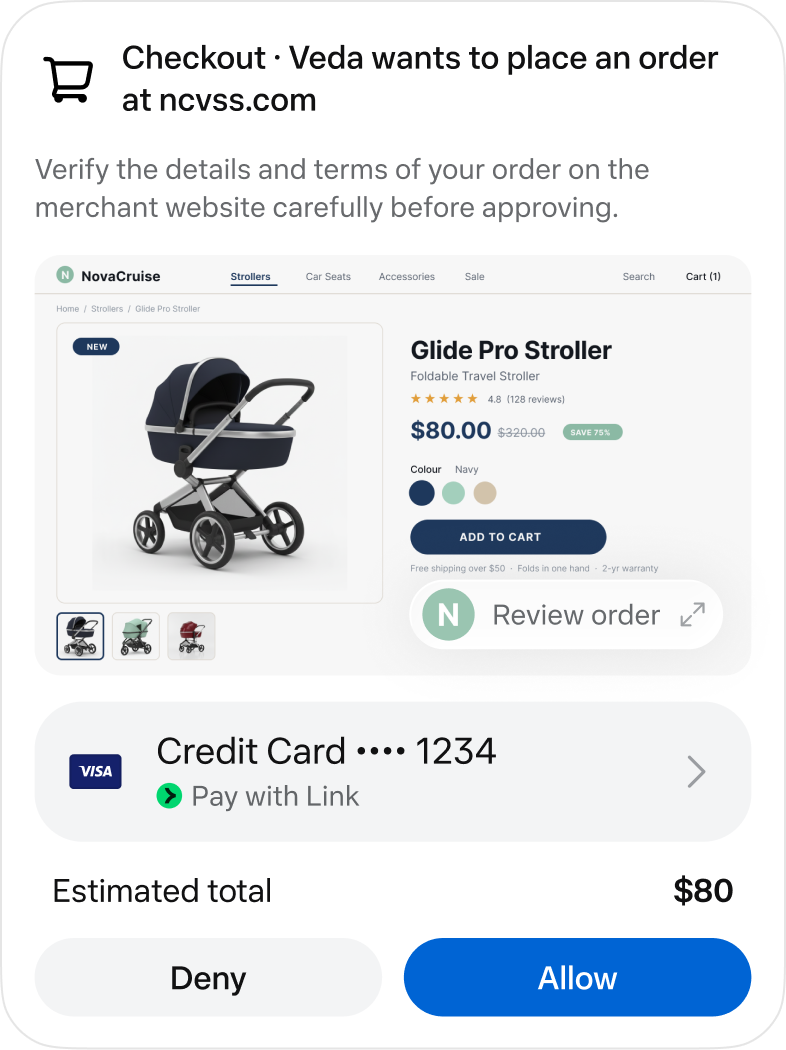
For a launch, work through one concrete action at a time: prepare the registration page, review it, publish it when ready, then verify the public page. Request the resulting URL or service confirmation. A draft, a queued action and a confirmed publication are different states.
Step 9: Add a recurring review you can inspect
Once the first brief is useful, you can schedule a review. Name the time zone, frequency, information source and output. Start with a summary you want to receive:
Every Monday at 9:00 a.m. America/New_York, review our
workshop launch checklist. Summarize completed items,
blocked items, upcoming deadlines and one decision for me.
Use only the project files and connections already approved
for this task. Confirm the schedule and first run time.
Tap the assistant icon and open Upcoming to check the scheduled task. You can ask Muse to change or cancel it; inspect Upcoming again afterward. Reminders arrive in your conversation, and recurring tasks continue until cancelled. Reminder and scheduling instructions.
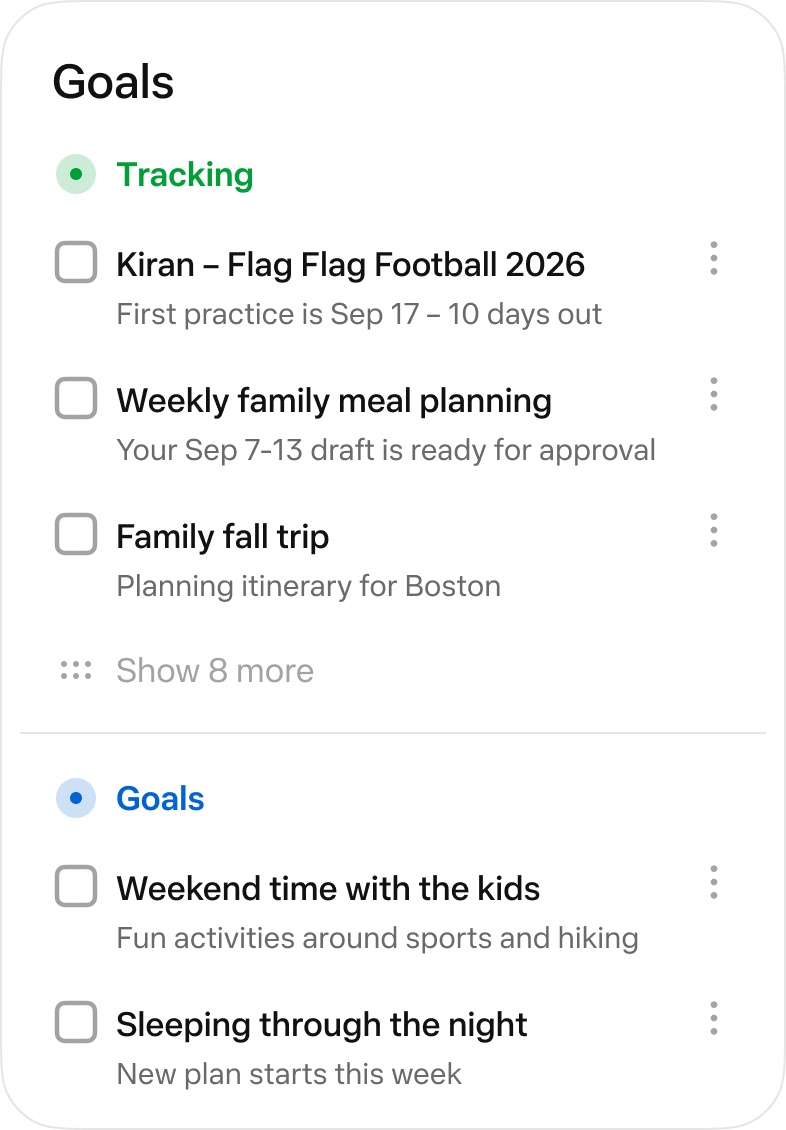
For an ongoing project, tell Muse the goal, the evidence of completion and the review date. Meta documents the Goals tab as the place to see progress. A useful goal here is “Finish the workshop buying and attendance experience,” with the page, checkout, confirmation and reminder checked before launch.
Step 10: Keep useful memory and an exit path
Tell Muse preferences that will improve future work: your audience, time zone, writing style and preferred deliverable formats. You can ask what it remembers and correct it. Meta also documents Settings > Data Controls > Import memory for uploading an exported chat ZIP from another assistant. Review what you intend to share first; importing an archive is a snapshot, not proof of live synchronization. Personality, memories and import instructions.
To inspect memory directly, use the assistant icon, then Identity > Memory. To download your Muse information, open Settings > Data controls > Download your Muse data and confirm Download. Disconnecting an app stops future exchange but may leave previously used information in memory or chat; ask Muse to forget specific material when needed. Data and export controls.
Optional: Use Muse on your Mac or in Chrome
The main exercise works with Muse's cloud browser. The Mac app adds local files and app access. Meta documents separate macOS permissions and Muse settings; local apps can be Off, Read only, or Read and interact. Review Settings > File System Access in Muse and System Settings > Privacy & Security on your Mac. Full Disk Access is broad, so choose this route when local work is part of the job. Mac access details.
Meta also documents an official Chrome extension that uses a dedicated group of tabs in your browser. Ask Muse in chat for the extension download. It can use websites where you're already signed in; review those accounts before starting. You can pause by clicking the page, pressing Esc or moving a tab out of Muse's group. Chrome extension instructions.
When the workflow gets stuck
| What you see | What to try |
|---|---|
| A feature or connector is missing | Check account and regional availability in the official help pages. Use public sources or upload a permitted file for the current task. |
| A website needs your login | Use the product's secure sign-in flow. Resume the same task after authorization and check its current status. |
| The answer sounds plausible but lacks evidence | Request the source URL for each decisive fact. Verify the finalists before choosing. |
| Muse says a file is finished, but you cannot find it | Open Library and ask for its exact filename and location. Open the file before treating the step as complete. |
| A scheduled task sends too much | Specify what counts as a meaningful change, adjust the cadence, or cancel it and check Upcoming. |
| You reach the usage limit | Wait for the allowance to refresh or compare the subscription options shown in your account. |
Use one completed workflow as your starting point. Keep the prompt, the reviewed output and the correction you made. That gives you something useful to reuse when the next workshop, client project or research task arrives.
Questions you might be asking
Is Muse free, and what do the paid plans cost?
Muse has a free usage allowance. On November 20, 2026, Meta’s subscription help page listed Power at $20/month and Maximum at $100/month, with larger allowances. Benefits and availability vary by account and region; review the current in-account offer before subscribing.
Is this guide about Muse Code or the Meta AI chatbot?
This guide covers Meta’s personal Muse agent at muse.ai. Muse Code is a separate coding tool, and Meta AI is a separate assistant experience. Use Meta’s official links to reach the product described here.
Will Muse keep working when I close the app?
Meta documents background work and scheduled tasks. Check the activity log and Upcoming to see what is running or scheduled. A task may still need your approval, an accessible website or additional information to finish.
Can I use the tutorial without connecting my accounts?
Yes. The public-source vendor comparison and saved launch brief are designed to work before you add a connector. Add a connection when a specific next task needs its information.
Does importing memory keep my other assistants synchronized?
An imported chat archive supplies past context. It does not establish continuous two-way synchronization of chats, tasks, files or permissions. Review the imported context and keep the current project decisions in a clearly named brief.
Sources and further reading
- Meta: Muse overview and capabilities
- Meta: Muse downloads
- Meta Help: get started with Muse
- Meta Help: connect apps and services
- Meta Help: browser controls and Chrome extension
- Meta Help: guidance, permissions and approvals
- Meta Help: files and artifacts
- Meta Help: reminders and scheduled tasks
- Meta Help: personality, memories and imports
- Meta Help: data controls and exports
- Meta Help: Mac files and app access
- Meta Help: current Muse subscriptions
- Muse for Small Business: supported connections
- Meta: How We Designed Muse — screenshot source
Sources checked November 20, 2026. Tool features and plan availability can change; review the linked publisher documentation before connecting an account.
Put one idea to work
Compare a tool on work you understand, measure review effort, and keep the result only when it improves the task.
Plan a useful tool trial →Explore more from AI SuperpowerKeep practicing
 Technology field notes
Granola, Figma or Canva? Follow one piece of feedback to the right tool
Three product updates make more sense when you start with the file you need to change.
November 18, 2026 · 2 min read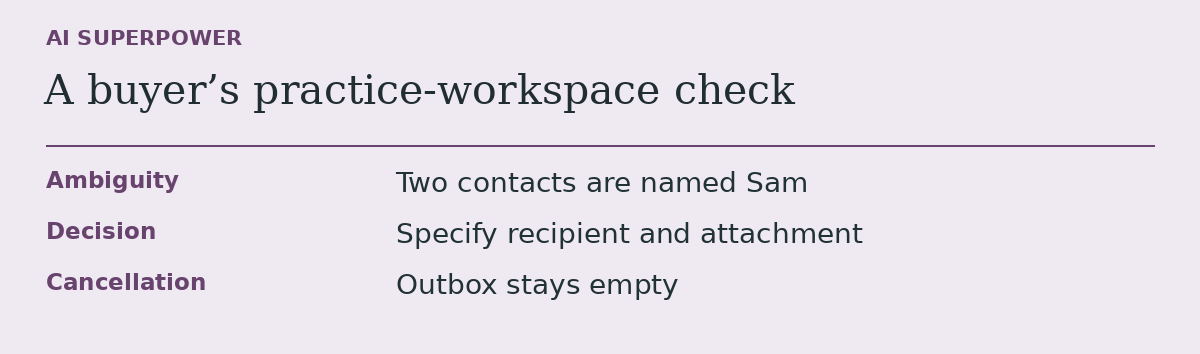 Technology field notes
Before you subscribe to an AI agent, give it a task it should leave unfinished
An acceptance test for buyers who need to know what an agent does when information runs out.
November 18, 2026 · 2 min read