ChatGPT Work practical guide
ChatGPT Work: research the web, prepare forms and create the deliverables
A practical Work guide for turning approved sources and web tasks into checked spreadsheets, briefs and ready-to-review forms.
In this guide
- The useful starting point
- Start a Work task with a finish line
- Connect the source when a plugin can do the job
- Workflow 1: pull public data into a usable spreadsheet
- Workflow 2: prepare a form without inventing answers
- Workflow 3: create the report from the data
- Keep a completion record
- Turn a useful run into a repeatable method
- Sources and further reading
The useful starting point
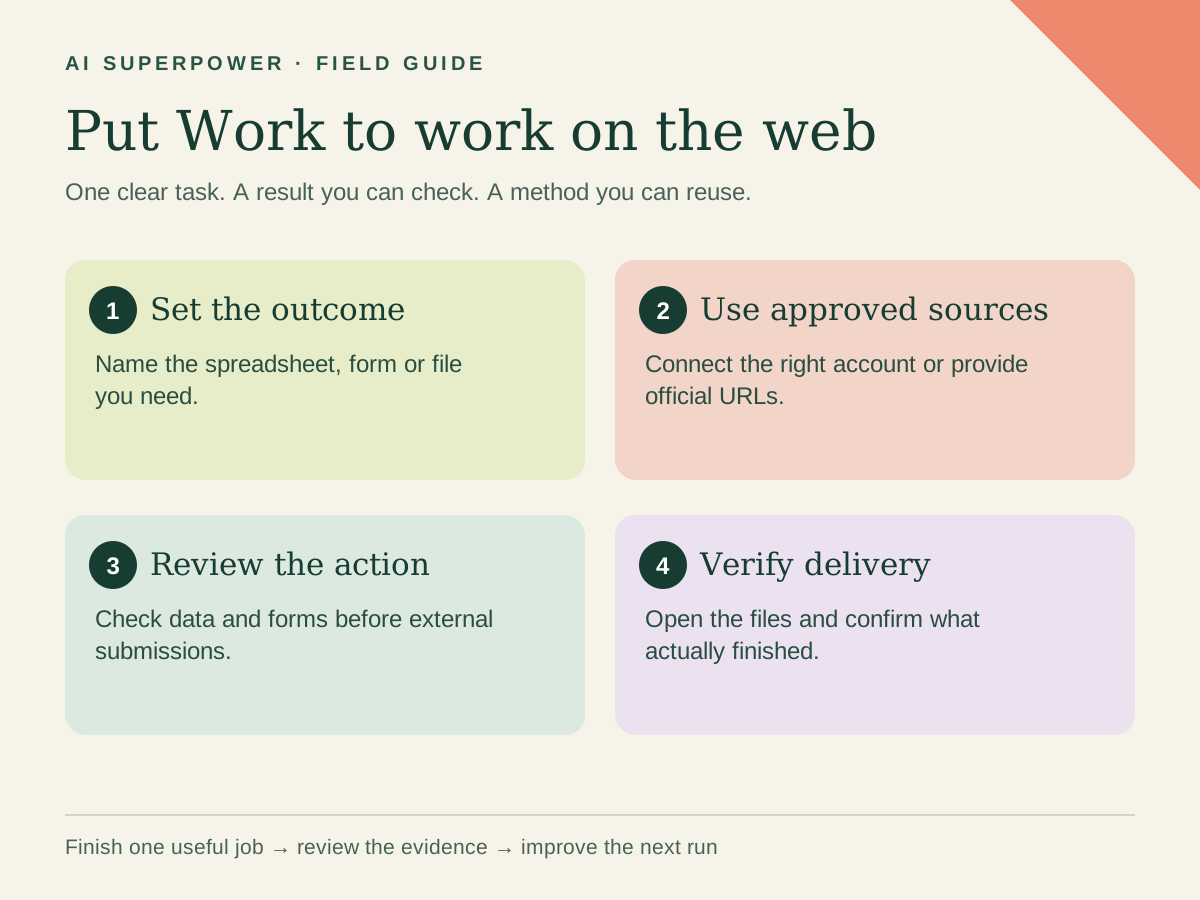
Start a Work task with a clear deliverable, source URLs and action boundaries. Use available plugins or browser tools, review extracted data and forms, and verify the saved result.
Imagine finishing a research task with the spreadsheet, the decision brief and the next-step draft already prepared. That is a useful way to approach ChatGPT Work: describe the work product and the checks it needs, then give it the context and access to complete the steps.
The following exercises are original suggested workflows. They are not independently tested speed comparisons. The aim is to reduce repeated handling while keeping the result accurate enough to use.
Start a Work task with a finish line
Open Work in ChatGPT and describe the output. For web tasks, OpenAI documents a cloud browser that runs separately from your device's browser. It does not inherit your local tabs or sign-ins. Website access depends on plan, rollout and workspace controls; authenticated browsing is currently documented for Plus and Pro on web/mobile, not Enterprise or Edu.
Approve relevant site access when prompted. Use the provided secure sign-in flow rather than putting credentials in chat. The agent can read, click and type on supported sites; some sites block automation or need a human step. Review consequential submissions and payments when prompted.
Connect the source when a plugin can do the job
For work in a supported service, open Plugins, inspect the relevant plugin and connect the intended account when prompted. Start a new chat after installation. You can name the plugin with @ or describe the task. OpenAI's plugin guide distinguishes reusable skills from tools that read or act in connected services.
Choose the source of truth before starting. If the approved event dates are in one document, specify that document. If the task needs current public pricing, require the provider's official page. Access to a service is not proof that every needed action is supported; ask Work to identify missing capabilities rather than pretending a step finished.
Workflow 1: pull public data into a usable spreadsheet
Choose five to ten official event pages. Define the columns, date range and rule for missing information. Request both the dataset and a short note explaining exclusions. This creates a file you can filter and update rather than a long answer you must copy by hand.
Research these official event URLs: [URLs].
Create a spreadsheet with event, organizer, date, timezone, venue,
registration URL, source URL and checked date.
Include only events between [start] and [end]. Do not guess missing values.
Deduplicate by event, date and venue; explain any conflicts.
Return the spreadsheet plus a short summary. Do not register anyone.
Check the row count and inspect at least three rows against their source pages. Confirm that the date columns sort as dates, each registration link belongs to the right event, and recurring events are not collapsed into one date. Ask for a clearly labeled “needs checking” column when evidence is incomplete.
Workflow 2: prepare a form without inventing answers
Start on a test form you control. Provide a short approved business profile and identify the exact form URL. Before filling it, ask Work to inspect which fields are required and whether the site saves entries automatically. That distinction matters: leaving the final button untouched does not always mean nothing was saved.
Use [test form URL] and the approved profile below.
List required fields, then fill only values supported by the profile.
Leave unknown fields blank and show me a field-to-source review.
Do not submit, accept legal terms, upload files or make a payment.
If typing triggers saving, tell me before entering information.
Review names, dates, recipient, checkboxes and optional marketing consent. After you decide to submit, authorize that specific action and ask for the confirmation or receipt. A success message in the conversation is not enough if the page still shows validation errors. File-upload support differs by environment; OpenAI's current browser guide says built-in browser uploads cannot be automated, so keep a manual handoff available.
Workflow 3: create the report from the data
Work supports creating documents, spreadsheets, presentations and PDFs; see OpenAI’s file guide for the available preview and review surfaces.
Continue from the accepted spreadsheet rather than restarting the research. Ask for a one-page recommendation and a short presentation that use the same source facts. Keep the audience, decision and preferred format explicit.
Using only the checked spreadsheet, create a one-page event shortlist
and a six-slide editable presentation for our team learning day.
Show two options, the decision criteria, unresolved questions and next steps.
Use the source links in speaker notes or an appendix.
Do not invent attendance, testimonials, prices or availability.
Check that the files open and that tables fit their pages.
Open the deliverables. Check that the recommendation matches the table and that no chart implies data you never supplied. Review the title, labels and text size. Ask for a revision with precise feedback such as “the date column wraps awkwardly” or “this recommendation ignores the travel limit.”
Keep a completion record
| Check | Evidence to request |
|---|---|
| Research completed | Source URLs, checked dates and unresolved gaps |
| Form prepared | Field mapping and the actual on-page state |
| Submission completed | Confirmation or receipt after authorized submission |
| File created | A working file link and a format check |
Turn a useful run into a repeatable method
Record your briefing, review and correction time. Compare the accepted result with your normal process. If the method works on another input, use Skill Creator in Work to capture the steps and acceptance checklist. Invoke @skill-creator and supply your accepted example. Review the skill before reuse; a saved method does not itself create a schedule or connect an account.
Start with one modest task that has a visible finish. Then add the next step that removes real work from your list. Explore the tool directory, try the Tool Trial Lab, or get help applying this to your business in a $350 AI Working Session.
Explore the Agent Field Guide → · Get help with your workflow →
Sources and further reading
Sources checked October 31, 2026. Tool features and plan availability can change; review the linked publisher documentation before connecting an account.
Put one idea to work
Compare a tool on work you understand, measure review effort, and keep the result only when it improves the task.
Plan a useful tool trial →Explore more from AI SuperpowerKeep practicing
 Technology field notes
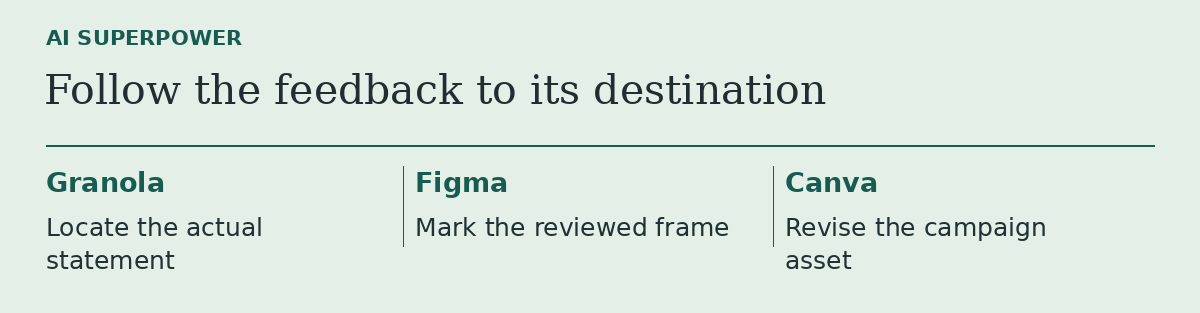
Granola, Figma or Canva? Follow one piece of feedback to the right tool
Three product updates make more sense when you start with the file you need to change.
November 18, 2026 · 2 min read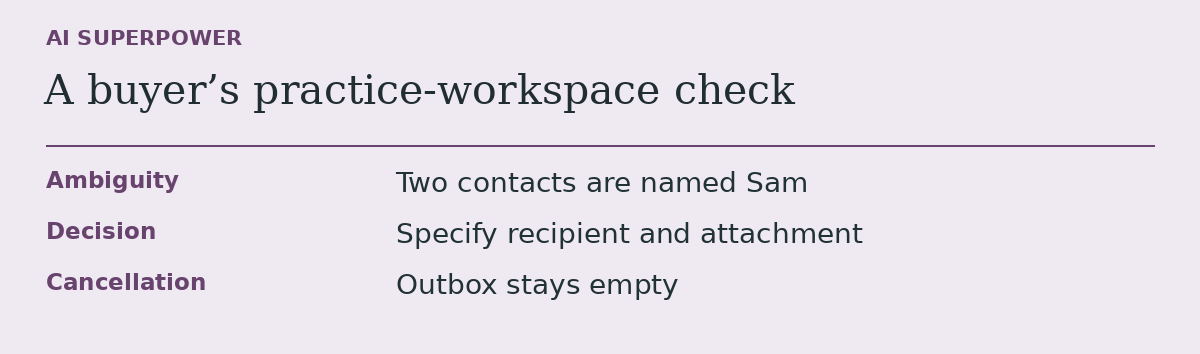 Technology field notes
Before you subscribe to an AI agent, give it a task it should leave unfinished
An acceptance test for buyers who need to know what an agent does when information runs out.
November 18, 2026 · 2 min read